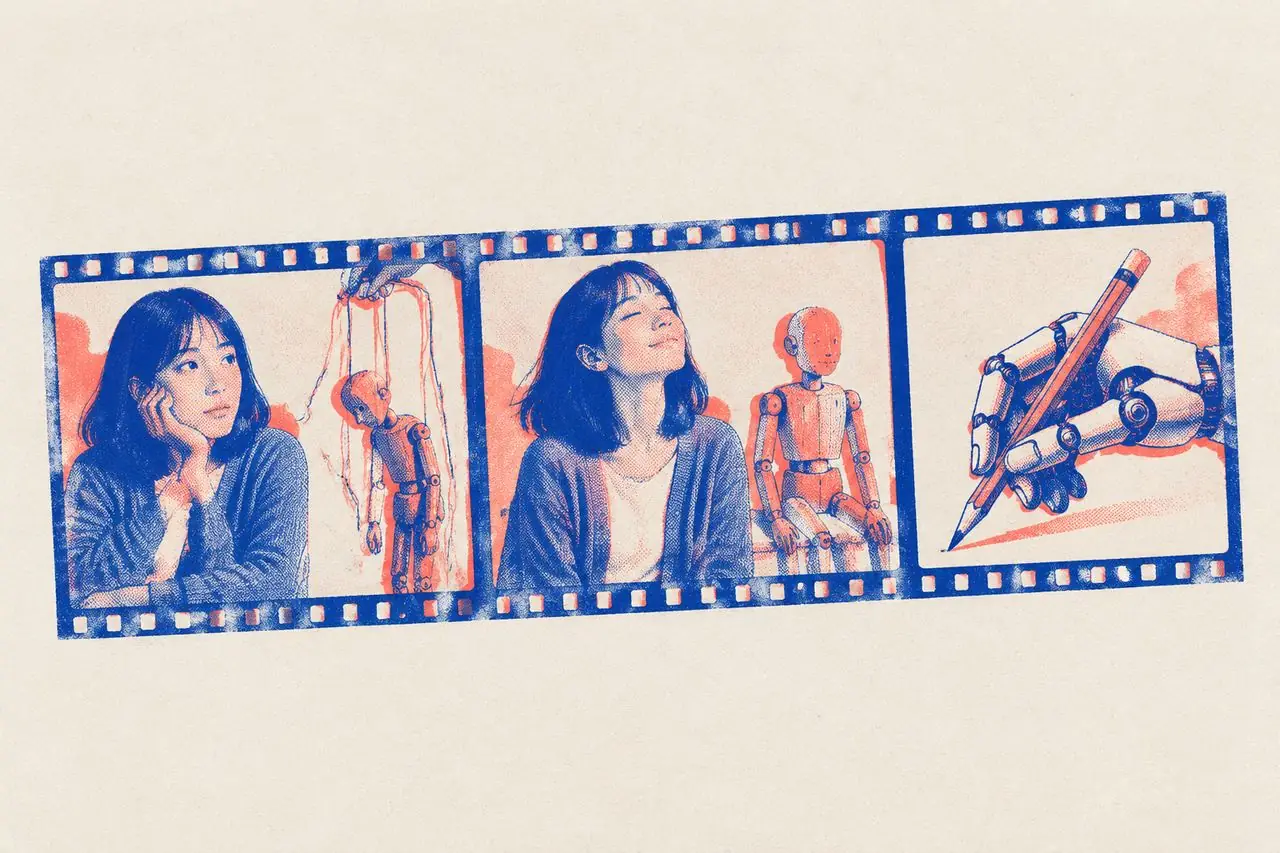
How to Fix Inconsistent Characters and Stiff Motion in AI Videos: Character References, Action Splitting, Hands & Foot Sliding
When you sit down to make a multi-shot AI short film or animation, the wall you hit first usually isn't "the image quality isn't pretty enough." It's these four dead giveaways:
- Face-shifting characters: In Shot 1 your heroine has long straight black hair; in Shot 2 she suddenly has a brown bob and a different nose;
- Puppet-stiff motion: Waving hello looks like a rusty robot arm, and turning around looks like a cardboard cutout spinning on a stick;
- Broken hands: The occasional extra finger, fused fingers, or fingers melting into the side of a coffee mug;
- Moonwalking / Foot sliding: The character is supposed to be walking down the street, but their feet skate across the pavement like they're on ice.
Any one of these instantly tells the viewer "This was generated by AI." Below, using the widely used Seedance 2.0 and 2.5 as the example (specs and recommendations follow the official Volcengine Ark documentation), we break down why each problem happens and how to fix it. The same ideas carry over to other models; check their own docs for exact limits.
1. Character Inconsistency: Lock the Character With Reference Images, Let Text Just Point to Them
Why Characters Change Faces Between Shots
With text alone, the model has to re-imagine a face from a few words like "long black hair, oval face" every time, so two generations rarely produce the same person no matter how detailed you are. A reference image hands the model the face itself. Since Seedance 2.0, models support omni-reference input: 2.0 accepts up to 9 images, 3 videos and 3 audio clips per request, and 2.5 raises that to 30 images, 10 videos and 10 audio clips, carrying the character's look straight from the reference. So today the first tool for consistency is the reference image; text plays a supporting role.
Step 1: Find Out Whether Your Model Accepts Real-Person Photos
Platforms and APIs treat real human faces differently: some reject reference images containing real faces outright (for example, Seedance 2.0 / 2.5 on the official Volcengine Ark API), while others impose no such restriction. The way you prepare references differs, so here are both cases.
Case A: Your Model Accepts Real-Person Photos
- You can use real photos directly as character references, prepared as a headshot plus a full-body shot (see Step 2);
- Use single-person photos with a clear, front-facing, neutral face, a clean background and even lighting. Don't crop a tiny face out of a group photo;
- Only use yourself or people who have given you permission to use their likeness. A platform not blocking it doesn't make it OK to use photos of celebrities, influencers or acquaintances;
- If you'd rather not use a real person, generate a fictional character's look with a text-to-image model first, then use that image as the reference in every shot.
Case B: Your Model Blocks Real-Person Photos
Taking Seedance 2.0 / 2.5 on Volcengine Ark as the example: reference images and videos containing real faces can't be uploaded directly. The official docs offer three routes:
- Use model outputs from the same account: portrait images generated by Seedream 5.0 text-to-image, or face-containing videos (and their last frames) generated by Seedance 2.0 / 2.5, within the last 30 days on the same account, can be fed back in as references. They must be the original files: anything edited, compressed, forwarded or expired stops working, and they can't cross accounts or platforms;
- Use the platform's preset virtual avatars: when you need a realistic face but not a specific person, pick one from the avatar library;
- Use authorized real-person assets: when a specific real person must appear, submit their likeness authorization through the platform's process first.
Note: realistic faces generated on other platforms get treated as real faces and blocked too. So on these models the smoothest path for a realistic character is to generate the look with text-to-image on the same platform and account, then use it for video. Assets without faces (locations, props, products) aren't affected.
Step 2: Prepare One Headshot and One Full-Body Shot per Character
- The headshot keeps only the head, face filling the frame, neutral expression; it defines what the person looks like. The full-body shot defines outfit, hair and build. Official troubleshooting for inaccurate face references points out that mixing the face with full-body and outfit details in one image, leaving the face too small, is a common cause of mid-video face swaps;
- Seedance 2.0 advises against character turnarounds or multi-view sheets, because the model may read one person as several and produce "twins." 2.5 handles both single- and multi-view with 1–5 subjects; above 5 subjects, single-view is more stable;
- Keep the background clean and the lighting soft and even, so clutter or heavy shadows don't get carried into later shots as part of the character;
- Prepare one empty reference image for each main location as well, to lock in the environment and lighting;
- Don't overload. The official recommended setup for 2.0 is 4–5 assets in total: 1–2 character images + 1 location image + 1 camera-move reference video + 1 audio clip. Maxing out the limit makes it harder for the model to tell what matters most.
Step 3: Bind Each Image to a Named Subject in the Prompt
Uploading images isn't enough; the prompt must say which image is whom and what to take from it. The officially recommended pattern is "Define the [2–3 stable traits] in Image N as [name]," with assets numbered Image 1, Image 2 and so on in upload order.
- When the reference images are good enough, just write "Lin Xia" to point to them; there's no need to restate her whole appearance. The official guidance is to keep descriptions concise and avoid contradictions, since text that disagrees with the image confuses the model;
- The more precisely an asset needs to be reproduced, the earlier it should appear in the prompt;
- With several characters, upload and number references in the order each character first appears. In the 2.5 official FAQ, characters swapping with the wrong reference was fixed exactly this way;
- Put the mapping in the prompt. Writing "Zhang San" on the image itself and expecting the model to pick it up tends to cause mix-ups or duplicated characters.
Step 4: One Name From Start to Finish, and Guard Against "Twins" in Group Scenes
Call the character by the exact same name ("Lin Xia") in every beat. Don't call her "Lin Xia" in Shot 1, "the heroine" in Shot 2, and "the girl in the sweater" in Shot 3. Switching labels can trick the model into spawning a second person.
- For two similar-looking characters (say, two girls in matching uniforms), separate them with a visible tag ("Red-Hairpin Girl" vs. "Ponytail Girl") and tie each to her own reference image;
- Add a global constraint at the end, such as "No two characters with identical appearance or clothing anywhere in the video; no duplicate or twin characters";
- Don't cram in too many people. The docs note 2.0 gets less stable beyond 4 referenced people; you can first generate group images of the cast in smaller groups and use those as references. For 2.5, 1–8 subject images work best.
Step 5: Let Reference Assets Handle Wardrobe, Locations and Voice Too
- Keep a character in the same outfit within a scene. When the story needs a costume change, treat it as "Look 2": prepare a new full-body image and switch to it for those shots;
- Use the same location reference for every shot in a scene, and keep the lighting direction, color tone and style wording consistent;
- Keep the voice consistent too: Seedance 2.0 / 2.5 both generate video with audio, so to keep a character's voice stable, supply a reference audio clip and state the mapping ("Image 1 is Lin Xia, using the voice from Audio 1"). Note that in 2.0 an audio reference must be paired with an image or video; 2.5 accepts audio references on their own.
When You Only Have Text-to-Video
If your tool doesn't support reference images, you have to rely on one fixed appearance description, pasted verbatim into every shot:
- Only stable traits: age range, build, face shape, hair style and color, default outfit (color + cut), and one or two distinct markers;
- No temporary states: holding coffee, wiping tears, mud on the sleeve. Those belong in that shot's action;
- Skip vague words like "sweet-looking" or "charismatic." Write concrete colors, cuts and shapes instead.
Even so, text alone rarely guarantees the same face across two generations. The better move is to fit as many shots as possible into a single generation (see Section 5), since a character stays continuous within one generation.
2. Stiff Motion: Reference It When You Can, Describe the Transitions When You Can't
Why AI Motion Looks Like a Puppet
Real human movement always has three phases: anticipation (the wind-up) → the main action → follow-through (settling with inertia). When a generated action skips the first and last phases, it looks like a mannequin being dragged from Point A to Point B.
Fix 1: If You Have a Motion Reference Video, Use It
Seedance 2.0 / 2.5 can take motion, expressions and camera moves from a reference video. For a natural turn, a dance or a fight, it beats describing it word by word: find (or shoot) a motion reference clip and write "Reference the movement in Video 1 to generate…". The 2.5 guidance says that when the reference is precise enough, just point to it, e.g. "Strictly follow the movement and camera work of Video 1, in the same order," without spelling out "first raise the hand, then turn." 2.5 also supports blocking-model ("white model") references: rough geometric shapes that act out the motion, which the model then renders.
Fix 2: No Reference Video? Write the Wind-Up and Follow-Through
| Stiff One-Word Prompt | Natural Prompt |
|---|---|
| She waves hello | She lifts her elbow slightly, opens her palm, waves gently side to side twice, and lets her arm drop naturally back to her side |
| He turns and leaves | He lowers his gaze for a beat, shifts his weight onto his left foot, pivots his shoulders slowly, and steps away |
| She sits down | She rests one hand on the back of the chair, leans slightly forward, lowers herself onto the seat, and settles her back against the chair |
But don't break down every action this finely. The 2.5 guidance recommends summarizing most actions ("the two break into close-quarters combat") and writing detail only for the few memorable key moments, without repeating the same action. Save the detail for the one or two moments the viewer most needs to see.
Fix 3: One Main Action per Shot, Without Generating Shots Separately
"She pushes the door open, tosses her bag on the table, takes off her coat, sinks into the couch and turns on the TV." Crammed into one shot, every action becomes a blur. Split the chain across several shots, but those shots can live in one prompt and one generation: Seedance 2.0 runs up to 15 seconds per generation and 2.5 up to 30, so write "Shot 1 / Shot 2 / Shot 3" and the character also stays more continuous within that generation. 2.0 responds unreliably to exact timings like "0–3 seconds," so use shot numbers; 2.5 responds to whole-second timestamps.
Fix 4: Add Small Secondary "Signs of Life"
Real people don't freeze like statues while talking—they blink, shift their weight, brush a sleeve, or nod slightly; when they walk, their arms swing and their hair bounces. Dropping one small secondary motion into your prompt melts away the mannequin stiffness:
Fix 5: Slow Down Violent Action, or Hand It to a Reference Video
The official motion guidance also favors slow, continuous, subtle movements and steering clear of high-burst motion like sprinting, big jumps and violent tumbling. If the story doesn't demand it, slow the action down. If you truly need a fight or chase, lean on a motion reference video, or, as the docs suggest for action-heavy scenes, generate them in segments and cut them together for pace.
Fix 6: Build In an Emotional "Reaction Delay"
When real people hear shocking news, their faces don't morph in 0.01 seconds—they freeze for half a beat while the words sink in. Write that pause into the prompt ("She freezes for a moment, her lips parting slightly, before her eyes slowly well up"), and replace abstract words like "very sad" or "angry" with concrete physical details. The performance immediately feels human.
3. Hands: You Can Show Them Now. Describe the Contact and Add Constraints
Early video models produced extra and fused fingers so often that the standard advice was "keep hands out of frame." Things are much better now: official Seedance examples include hand close-ups like fingers scooping face cream, fingers tracing a tire's grooves, and both hands gently pinching someone's cheeks, and the official FAQs no longer list hands as a problem. Yet those same examples still include constraints like "normal hand structure; no extra fingers, fused fingers or deformed hands," so the issue hasn't vanished. Show hands freely, but do the following:
1. Spell out how the hand contacts the object: "her right hand grips the handle of the mug," "fingers make precise contact with the cheek" clip through objects far less than "she holds a cup." 2. Add a hand constraint at the end of the prompt: "normal hand structure, no extra fingers, no fused fingers, no hand clipping through objects." 3. Very fine finger work (piano, tying shoelaces, pen spinning) still fails more often, so generate a few takes and pick. 4. If only a few seconds have bad hands, don't regenerate everything: use video editing on just that stretch. 2.5, for example, supports time-ranged edits like "In Video 1, change the action at 4–6 seconds to…, keep everything else unchanged." 5. Only for an extremely hard hand close-up (slipping a ring onto a finger, say) should you fall back to filming two seconds of your own hand and cutting it in.
4. Foot Sliding: Force the Model to Plant Feet on the Ground
Why Characters Look Like They're Ice Skating
When generating a walking character, the model often translates the whole body across the background without locking the soles of the shoes to fixed points on the ground.
Four Ways to Ground the Walk
1. Describe the contact between foot and ground: Instead of "he walks down the street," write "he steps firmly across wet cobblestones, each footstep kicking up tiny droplets of water." Splashes, gravel or fallen leaves force the model to work out where the foot lands. 2. Use a tracking camera: If the camera moves with the character, they stay in roughly the same spot in frame while the background moves, which hides foot sliding dramatically. 3. Frame from the waist up: In a medium shot or close-up, the rise and fall of the shoulders sells the walk without showing the feet. 4. Let sound plant the steps: Seedance 2.0 / 2.5 generate audio along with the video, so write the footsteps into the prompt, e.g. "<crisp leather-soled footsteps on wet stone>". If the generated steps don't line up, or you generated without audio, add them in your editor. Once the ear believes it, the eye forgives a little slide.
5. A Workflow for Multi-Shot AI Short Films
Putting it all together, here is a seven-step workflow for a multi-shot AI story:
1. Write the shot list: map out every shot, character and location in plain text first. 2. Check your model's policy on real-person photos and prepare character images per Case A or Case B in Section 1. 3. Prepare references: one headshot + one full-body shot per character, one empty plate per main location; add a reference video for a specific motion or camera move, and a reference audio clip for a fixed voice. Don't max out the limits. 4. Write the prompt: asset mapping (which image is whom, what to reference) → a one-line summary → Shot 1 / Shot 2 / Shot 3 (or timestamps in 2.5) → global style and constraints at the end (no twins, hands, no subtitles, etc.). 5. Generate a whole sequence at once: up to 15 seconds in 2.0 and 30 in 2.5. If shots fit in one generation, don't generate them separately. 6. Extend only when you run out of time: for continuous dialogue or emotional build within one location, use video extension for a smoother join; for scene changes, fights and chases, generate segments and cut them together. The docs warn that repeated extensions compound quality loss, so keep the number of extensions low. 7. Curate and fix: judge likeness to the reference first, smooth motion second. For local problems (a few seconds of bad hands, one character's face off), try video editing first, and fall back to covering it in the edit last.
6. Pre-Generation Checklist
1. Have you checked whether your model blocks real-person photos, and are your character images from a compliant source? 2. Does every main character have a headshot + full-body shot? (No turnaround sheets on 2.0.) 3. Does the prompt state which subject each reference image is and what to take from it? 4. Does each character keep one name throughout? 5. Are shots that fit in one generation written into the same prompt? 6. Does each shot have just one main action, with a reference video or a written wind-up and follow-through for key moves? 7. For hand close-ups, did you describe the contact and add a hand constraint? 8. Do walking shots include ground contact and footstep sounds?
FAQ
Q: I supplied reference images, but the character still swaps faces mid-video. What now? The common cause in the official troubleshooting is a face reference that isn't isolated enough: the face mixed into a full-body or outfit image, taking up too little of the frame. Prepare a separate head-only headshot, write "Lin Xia's face references Image 1 (headshot); outfit references Image 2 (full-body)," and put that headshot early in the prompt.
Q: What if my tool doesn't support reference images, only text-to-video? Then your fixed appearance description does all the work: paste it word-for-word, make every trait concrete and visible (write "navy crewneck sweatshirt and khaki cargo pants," not "dark clothes"), and fit as many shots as possible into one generation to reduce face drift between generations.
Q: I generated five takes of the same shot. Which one should I keep? The one where the face matches the reference best; rank smooth motion second and pretty lighting last. A gorgeous shot where the lead suddenly looks like a stranger breaks your story every time.
Q: Everything is generated, but a few shots still look off-model. How do I save it? Try video editing first, e.g. "Replace the woman in Video 1 with Lin Xia from Image 1, keep everything else unchanged," which changes the person without touching the shot or motion. If that still falls short, use editorial misdirection: swap the worst front-facing shots for over-the-shoulder, wide or prop insert shots, keep the character's signature clothing visible, and let continuous dialogue bridge the cut so the audience reads them as the same person.
Want to base an AI video on the characters and shots of a reference clip? Run it through VideoLens to get character and scene references plus shot-by-shot prompts, then prepare your reference assets and generate whole sequences using the methods above.