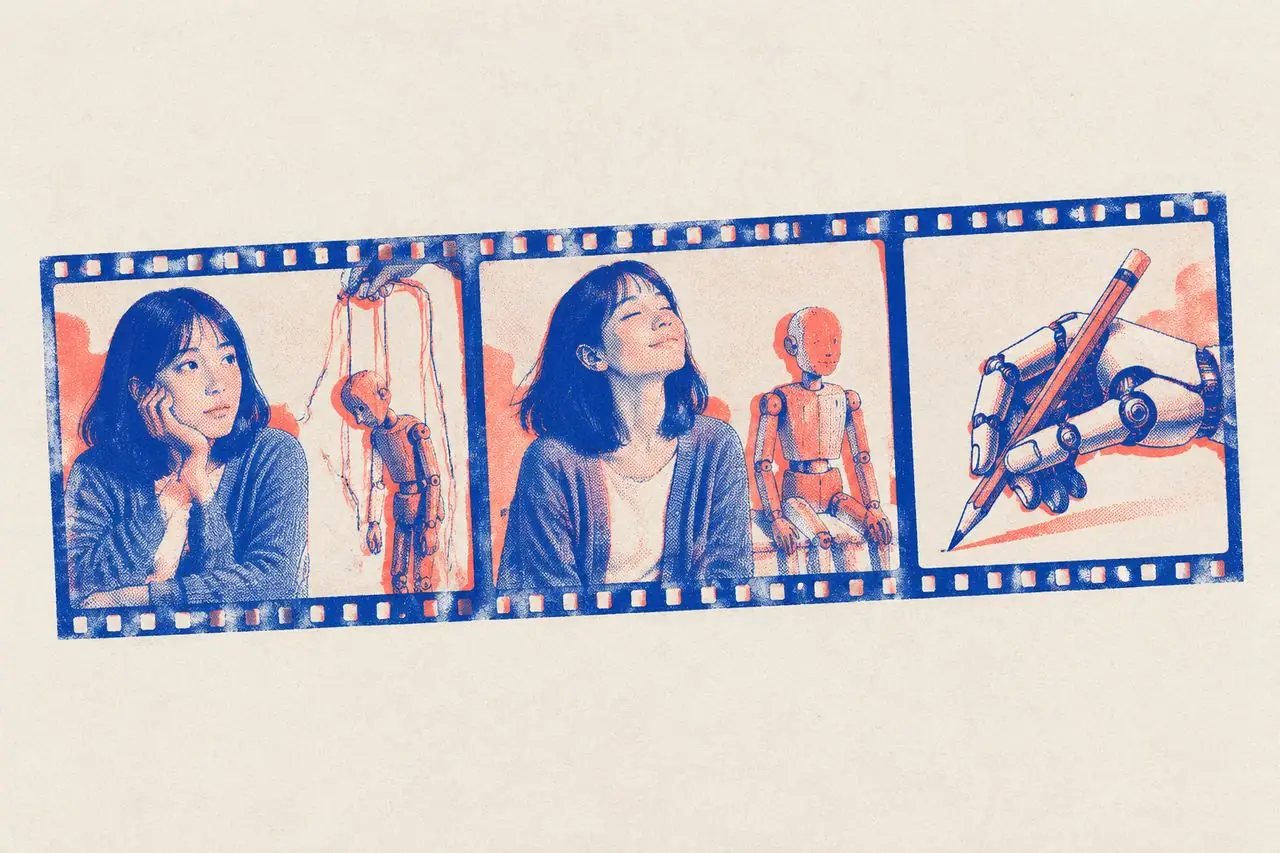
How to Fix Inconsistent Characters and Stiff Motion in AI Videos: Character References, Action Splitting, Hands & Foot Sliding
When you sit down to make a multi-shot AI short film or animation, the wall you hit first usually isn't "the image quality isn't pretty enough." It's these four dead giveaways:
- Face-shifting characters: In Shot 1 your heroine has long straight black hair; in Shot 2 she suddenly has a brown bob and a different nose;
- Puppet-stiff motion: Waving hello looks like a rusty robot arm, and turning around looks like a cardboard cutout spinning on a stick;
- Melting hands: Six fingers on one hand, four on the other, or fingers fusing straight into the side of a coffee mug;
- Moonwalking / Foot sliding: The character is supposed to be walking down the street, but their feet skate across the pavement like they're on ice.
Any one of these instantly tells the viewer "This was generated by AI" and pulls them out of the story. Here is why each problem happens and how to fix it in practice.
1. Character Inconsistency: Stop Re-Describing and Lock In a Fixed Identity
Why Characters Change Faces Between Shots
AI video models don't have a built-in memory of your cast across separate generations. Every time you hit generate, the model imagines a brand-new person from scratch based on your prompt or reference image. If your wording shifts slightly between shots—or if your description is vague ("a pretty young woman")—the model rolls the dice and hands you a stranger every time.
Fix 1: Generate a Clean "Character Turnaround / Reference Sheet" First
Before you generate a single story shot, create one clean anchor reference image for each main character:
- Facing forward, half-body or full-body;
- Plain solid background (white or light gray) so stray background clutter doesn't bleed into later shots;
- Soft, even lighting without harsh shadows distorting their facial structure;
- Neutral expression, arms relaxed at their sides.
Save this image and feed it into every single shot as your Character Reference / Image Prompt whenever your tool supports reference inputs.
Fix 2: Write a Locked "Character ID Block" and Copy-Paste It Word-for-Word
Write one fixed appearance description for each character and paste it verbatim into every shot—don't paraphrase or tweak a single word:
Three rules for writing your Character ID Block:
- Only include stable physical traits: Age range, build, face shape, hair style and color, default outfit (color + cut), and one or two distinct markers (glasses, a mole, a specific earring);
- Leave out temporary states: Holding a coffee cup, wiping away tears, smirking, mud on her sleeve—those belong to a specific shot's action prompt, not the character's permanent identity;
- Skip vague adjectives: Words like beautiful, handsome, or charismatic give the model zero concrete constraints. Specific colors, cuts, and shapes lock the look down.
Fix 3: Use the Exact Same Name From Start to Finish
In multi-shot prompts, call the character by the exact same name ("Lin Xia") in every single beat. Don't call her "Lin Xia" in Shot 1, "the heroine" in Shot 2, and "the girl in the sweater" in Shot 3—switching labels tricks the model into spawning a second person.
If a scene has two characters who look similar (say, two high-school girls in matching uniforms), give each one an unmistakable visual tag right in their name ("Red-Hairpin Girl" vs. "Ponytail Girl") and make sure that feature is clearly visible in their reference images.
Fix 4: Don't Change Outfits Mid-Scene
Keep a character in the exact same outfit throughout a scene. If the script calls for a wardrobe change later in the story, treat the new outfit as a separate character look and generate a fresh reference sheet for it.
Fix 5: Keep Lighting and Visual Style Consistent Within a Scene
Even the same real-life actor looks like two different people if Shot 1 is lit with warm golden-hour sunlight and Shot 2 is blasted with cold fluorescent hospital light. Copy-paste your lighting direction, color temperature, and style tags across every shot inside the same location.
2. Stiff Motion: Give Every Action a "Wind-Up, Drive, and Follow-Through"
Why AI Motion Looks Like a Puppet
Real human movement always has three phases: anticipation (the wind-up) → the main action → follow-through (settling with inertia). AI video models often skip straight to the middle phase, sliding a limb mechanically from Point A to Point B with zero weight or transition.
Fix 1: Spell Out the Full Physical Process
| Stiff One-Word Prompt | Natural Step-by-Step Prompt |
|---|---|
| She waves hello | She lifts her elbow slightly, opens her palm, waves gently side to side twice, and lets her arm drop naturally back to her side |
| He turns and leaves | He lowers his gaze for a beat, shifts his weight onto his left foot, pivots his shoulders slowly, and steps away |
| She sits down | She rests one hand on the back of the chair, leans slightly forward, lowers herself onto the seat, and settles her back against the chair |
Fix 2: One Main Action Per Shot
"She walks into the room, sets her bag on the table, takes off her coat, sits on the couch, and turns on the TV." Stuffing five actions into a 4-second generation gives each movement less than a second, guaranteeing robotic rush-jobs. Split chains like that into separate shots, with one clear action per clip.
Fix 3: Add Small Secondary "Signs of Life"
Real people don't freeze like statues while talking—they blink, shift their weight, brush a sleeve, or nod slightly; when they walk, their arms swing and their hair bounces. Dropping one small secondary motion into your prompt melts away the mannequin stiffness:
Fix 4: Dial Back the Speed
Fast, violent motion—martial arts, sprinting, fast dancing—is where AI video models break down hardest. Slow the action down whenever the story allows; if you need high-speed action, shoot it like an action movie editor by cutting together several 1-second micro-shots.
Fix 5: Build In an Emotional "Reaction Delay"
When real people hear shocking news, their faces don't morph in 0.01 seconds—they freeze for half a beat while the words sink in. Writing that pause into the prompt ("She freezes for a moment, her lips parting slightly, before her eyes slowly well up") makes the performance feel human.
3. Deformed Hands: Give Hands a Simple Job—or Keep Them Out of Frame
Why Hands Break So Easily
Five thin fingers bending at complex angles and constantly overlapping each other make hands the hardest anatomy problem in generative video.
Five Practical Workarounds
1. Skip hand close-ups unless the plot demands it: Frame shots from the chest up or from a side angle so the hands aren't the centerpiece of the image. 2. Give the hands a static, simple job: Resting flat on a table, tucked into coat pockets, or wrapped around a mug. The less the fingers wiggle independently, the cleaner they render. 3. Avoid intricate finger gymnastics: Tying shoelaces, playing piano, interlacing fingers, or spinning a pen in a main shot is asking for extra digits. 4. Spell out exactly how the hand contacts an object: Writing "her right hand grips the handle of the ceramic mug" produces far fewer melted-cup glitches than a vague "she holds a cup." 5. Shoot a real-life insert when it truly matters: If your story hinges on an extreme close-up of slipping a ring onto a finger, filming your own hand with a phone for two seconds and cutting it in beats burning 50 generations fighting the model.
4. Foot Sliding: Force the Model to Plant Feet on the Ground
Why Characters Look Like They're Ice Skating
When generating a walking character, the model often translates the whole body across the background without locking the soles of the shoes to fixed points on the ground.
Four Ways to Ground the Walk
1. Describe the physical impact between foot and ground: Instead of "he walks down the street," write "he steps firmly across wet cobblestones, each footstep kicking up tiny droplets of water." Giving the model splashes, gravel, or fallen leaves forces it to calculate where the foot hits. 2. Use a tracking camera: If the camera tracks alongside or behind the walking character, the character stays in roughly the same spot inside the frame while the background moves—which hides foot sliding dramatically. 3. Frame from the waist up: Shoot walking scenes in a medium shot or close-up where the natural rise and fall of the shoulders sells the walk without showing the feet at all. 4. Nail the footstep Foley in post: Adding crisp, frame-accurate footstep audio in your editor tricks the viewer's brain into feeling the weight of every step.
5. A 7-Step Production Pipeline for Multi-Shot AI Short Films
Putting all of this together, here is a reliable workflow for producing a multi-shot AI story:
1. Write the shot list first: Map out every shot, character, and location in plain text before generating a single image. 2. Generate anchor reference sheets: Create one clean character sheet per lead and one empty establishing plate per main location. 3. Lock your ID blocks: Write fixed text blocks for each character and location to copy-paste across the project. 4. Split actions into single-beat shots: Make sure every shot has just one primary action and keep individual clip durations short. 5. Generate shot by shot: Feed in the character reference image + locked ID block + the specific shot size, camera move, and split action for that beat. 6. Batch and curate: Roll a few takes per shot, picking character likeness first and smooth motion second. 7. Polish in the edit: Lay in room tone and Foley SFX, trim away the tail end of any shot right before a hand or face starts to drift, and use prop insert shots to cover cuts.
6. Pre-Generation Checklist
1. Does every main character have a clean reference image ready? 2. Is each character's text ID block copy-pasted word-for-word across every shot? 3. Does each character use the exact same name in every prompt? 4. Does each shot contain only one primary physical action? 5. Do your action prompts include the wind-up and follow-through? 6. Are hand close-ups kept to a minimum, with simple hand poses when visible? 7. Do full-body walking shots include ground-contact cues (or use waist-up framing)? 8. Are lighting and style tags locked across all shots in the same scene?
FAQ
Q: What if the AI video model I'm using doesn't support reference images—only text-to-video? Then your locked Character ID Block has to do 100% of the heavy lifting: paste it word-for-word in every shot, make every trait concrete and visual (write "navy crewneck sweatshirt and khaki cargo pants" instead of "casual dark clothes"), and avoid jumping the character between wildly different lighting setups.
Q: If I generate five takes of the same shot, which one should I keep? Always pick the take where the face matches your reference sheet best, then rank by natural motion, and put pretty lighting dead last. A gorgeous shot where the main character suddenly looks like a stranger will break your story every time.
Q: I already generated all my clips and a few shots still look slightly off-model. Can I save it in editing? Yes—use editorial misdirection. Replace the most obvious off-model front-facing frames with over-the-shoulder shots, wide shots, or prop insert close-ups; keep the character's signature clothing color visible; and let a continuous voiceover or dialogue track bridge the cut so the audience's brain links the shots together as the same person.
Want to base an AI video on the characters and shots of a reference clip? Run it through VideoLens to get character and scene references plus shot-by-shot prompts, then generate shot by shot using the methods above.